CRISP
User Guide
Learn how to get started with CRISP and make the most of its features.
Getting Started
CRISP helps you keep track of course work, team activity, and review tasks in one place. This user guide is intended to showcase some of the key features and workflows you can use to manage your course work.
- Register: Create an account from the sign up page.
- Wait for approval: Your account must be approved before you can access course content.
- Sign in: Log in to reach your dashboard and course list.
- Open your course: As a faculty staff, you can add students to the course from the course page. As a student, you can access your available courses from the course list.
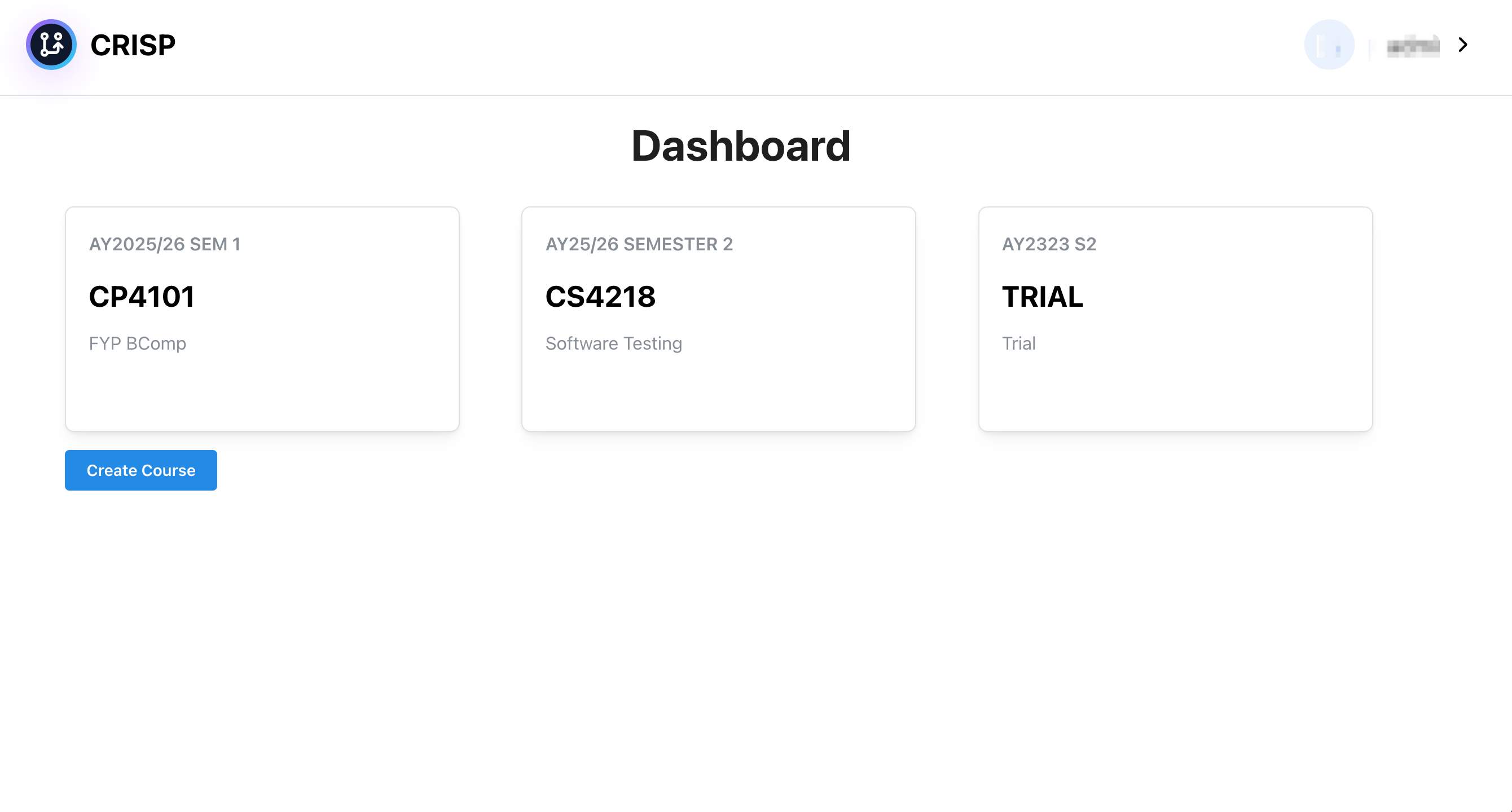
If you do not see an expected course, team, or assessment, contact your instructor or course administrator first.
Key Features
Courses
The Courses page is the easiest place to start. It shows the courses you have access to and lets you jump into the right workspace quickly.
- Use it to confirm that you have been enrolled in the correct course.
- Open a course to view its overview, assessments, teams, and timeline.
Course Overview
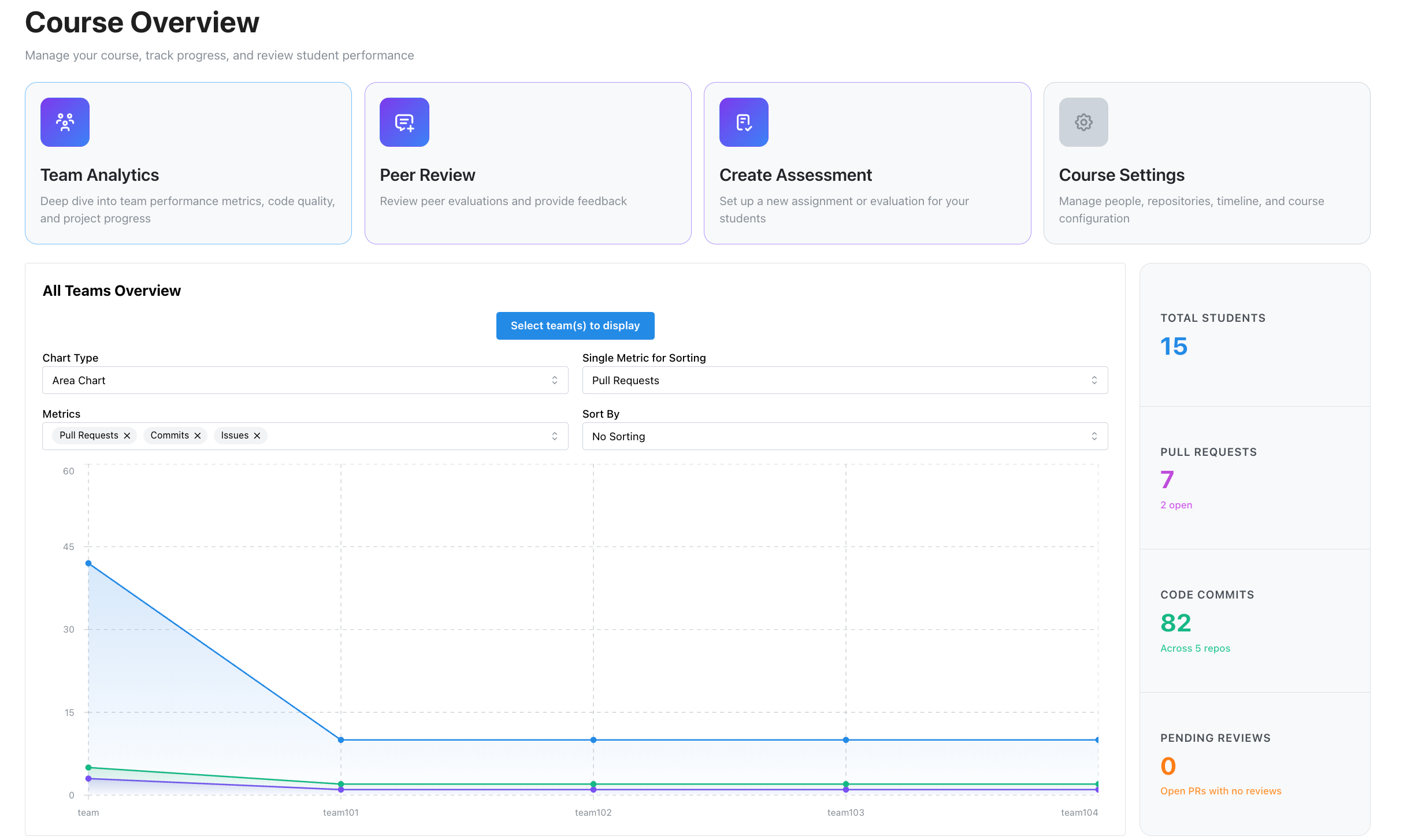 The course overview gives you a quick summary of what is happening in the course repository spaces.
- Check team activity such as pull requests, commits, and issues.
- Use filters or view controls, if available, to focus on the teams or signals that matter to you.
- Return here regularly if you want a fast status check before opening deeper pages.
Assessments
Use the assessments page to keep track of coursework and review-related tasks.
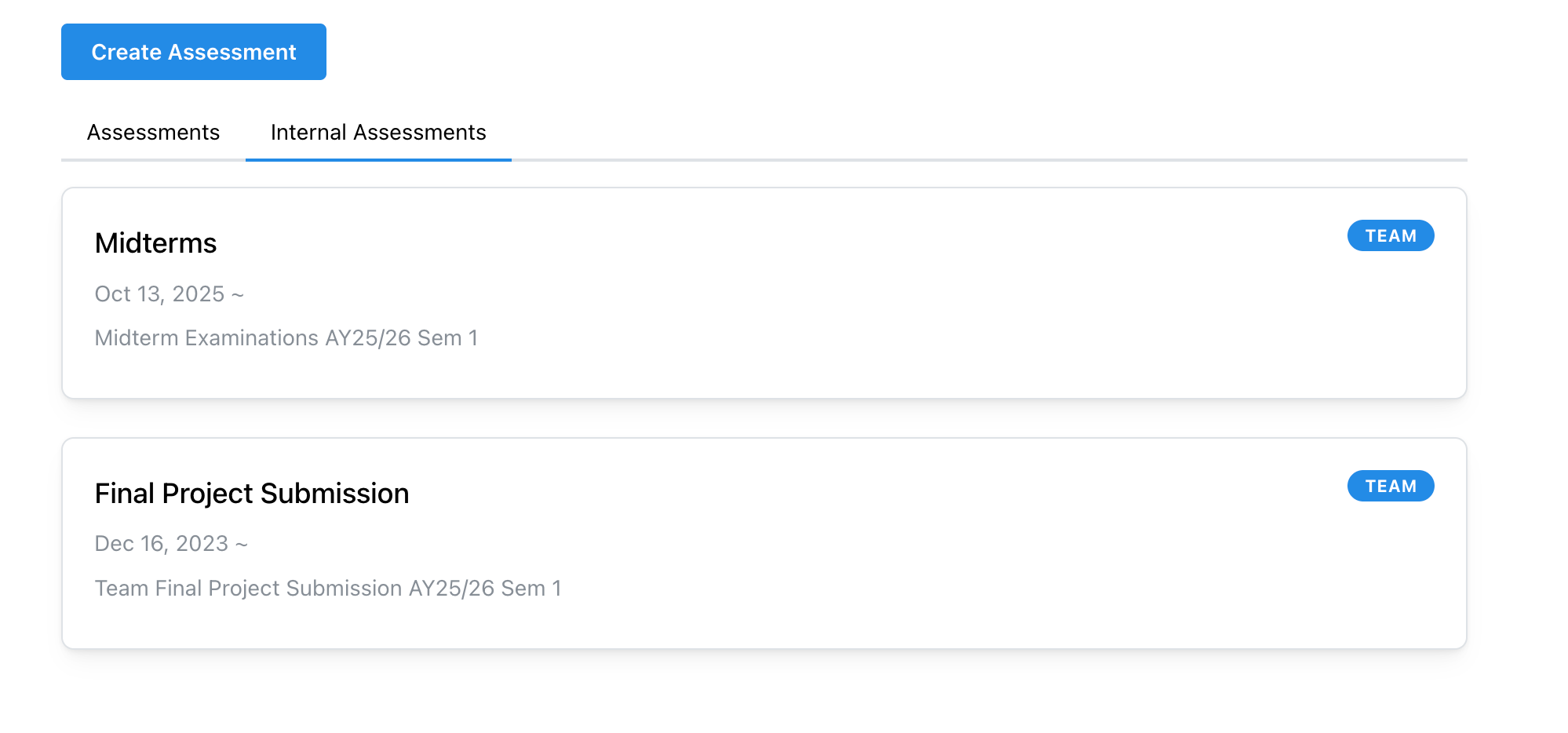
- View assigned assessments and their current status.
- Submit work according to your course instructions.
- Check for internal assessments or follow-up grading items if your course uses them.
- Revisit the page to monitor updates, deadlines, and released feedback.
Teams Analytics
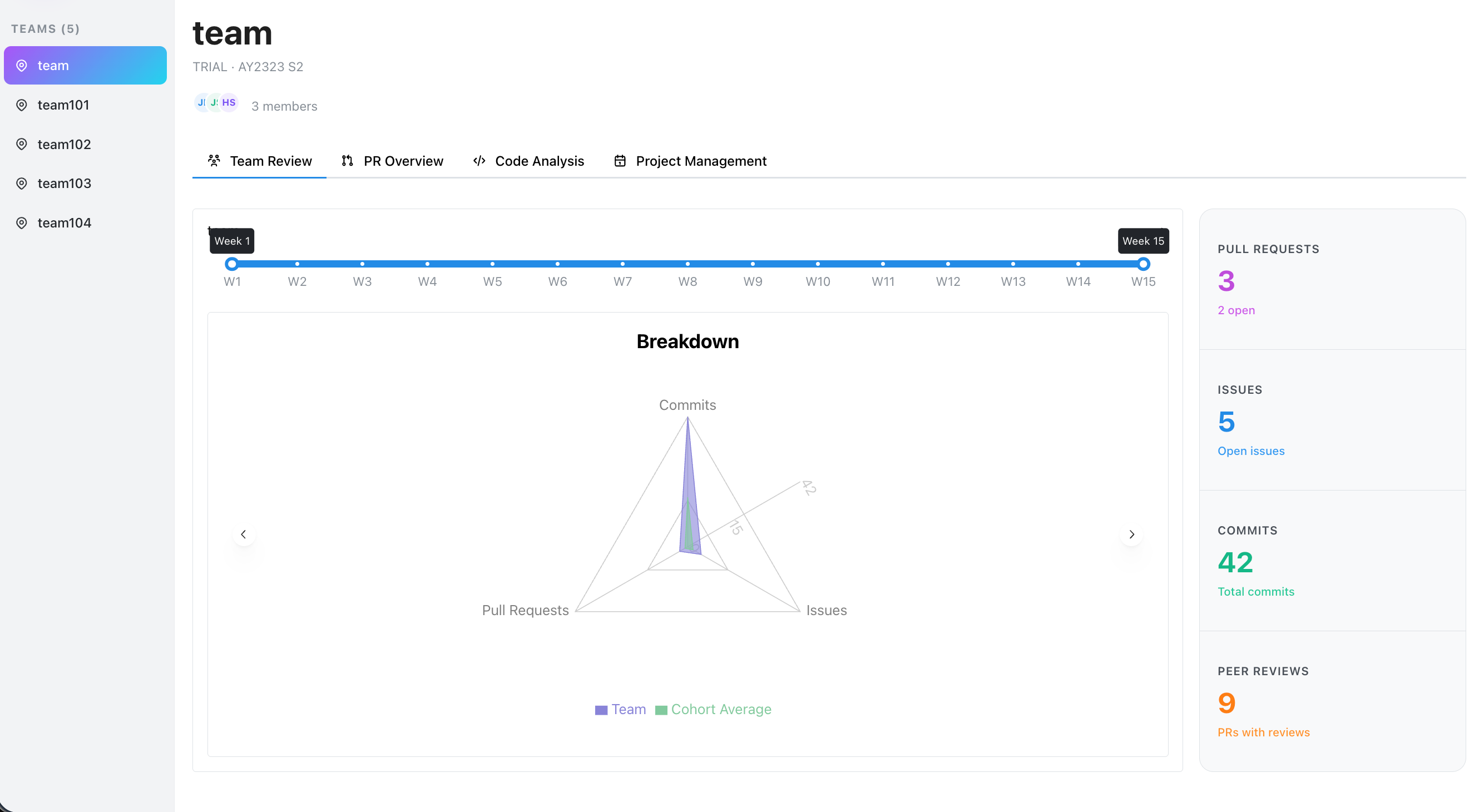
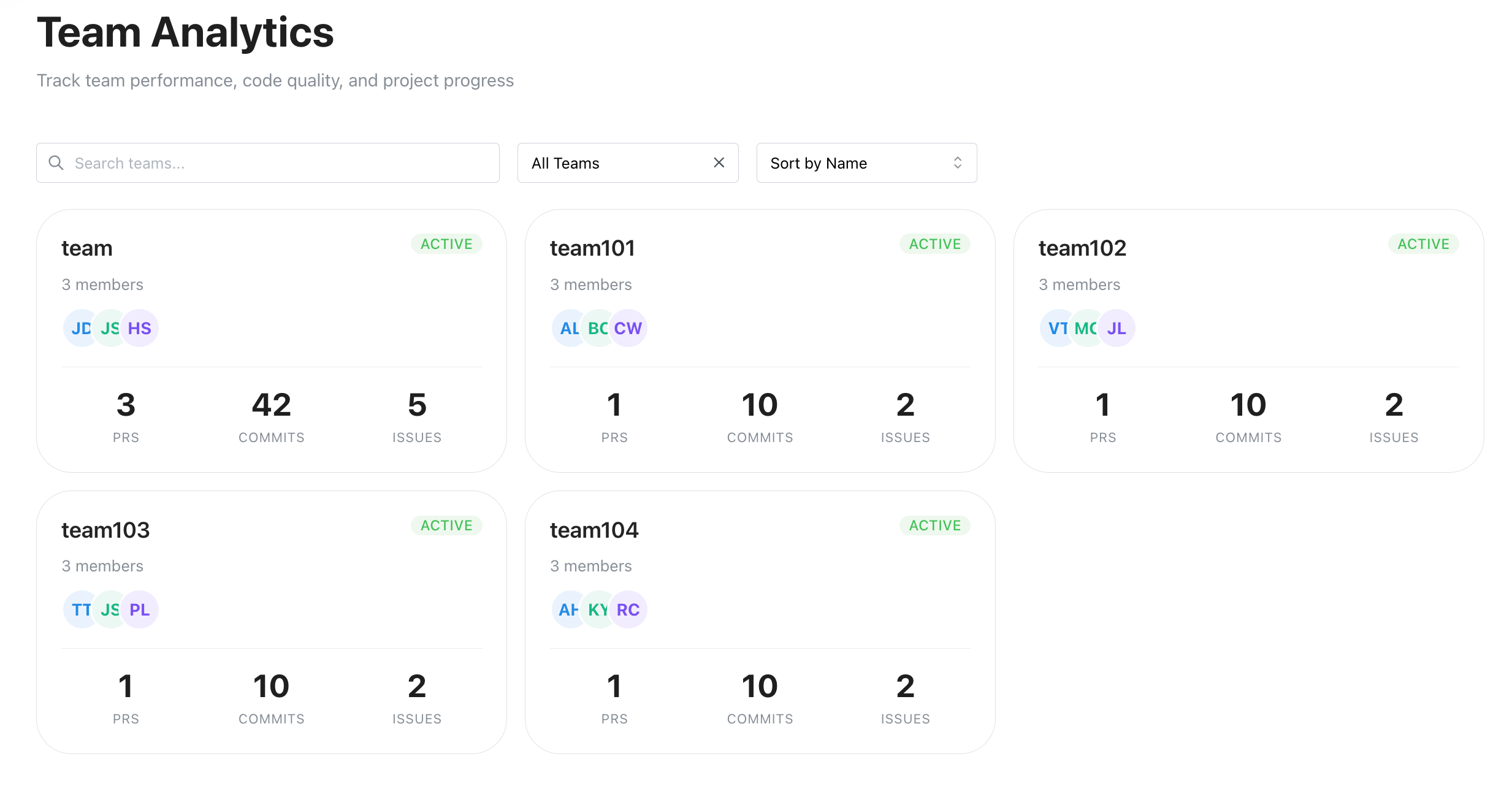 CRISP supports team-based work by surfacing repository activity in one place.
- Review your course teams' repository activity and contribution trends.
- Open pull request details to understand ongoing work and review progress.
- Use analytics views to compare activity across course teams or within your own team.
- Check code analysis results when your course includes automated quality checks.
- Check individual team analytics to see the contribution trends of each team member.
Peer Review
<!--  -->Some courses use peer review as part of the grading or feedback process.
- Open the assigned peer review when it becomes available.
- Read the instructions carefully before scoring or commenting.
- Submit only after you have finished all required sections.
- If a review is missing or looks incomplete, check with course staff before the deadline.
Need Help?
For technical documentation and setup instructions, see the Developer Guide. Contact your instructor or course administrator for course-specific questions. Feel free to contact the CRISP team at crisp@nus.edu.sg for any questions or feedback.